Import assets in bulk (recommended)
Bulk importing is the fastest way to create ads in Launch Sheets. It lets you bring in dozens of creatives at once and automatically group them into rows.
How it works
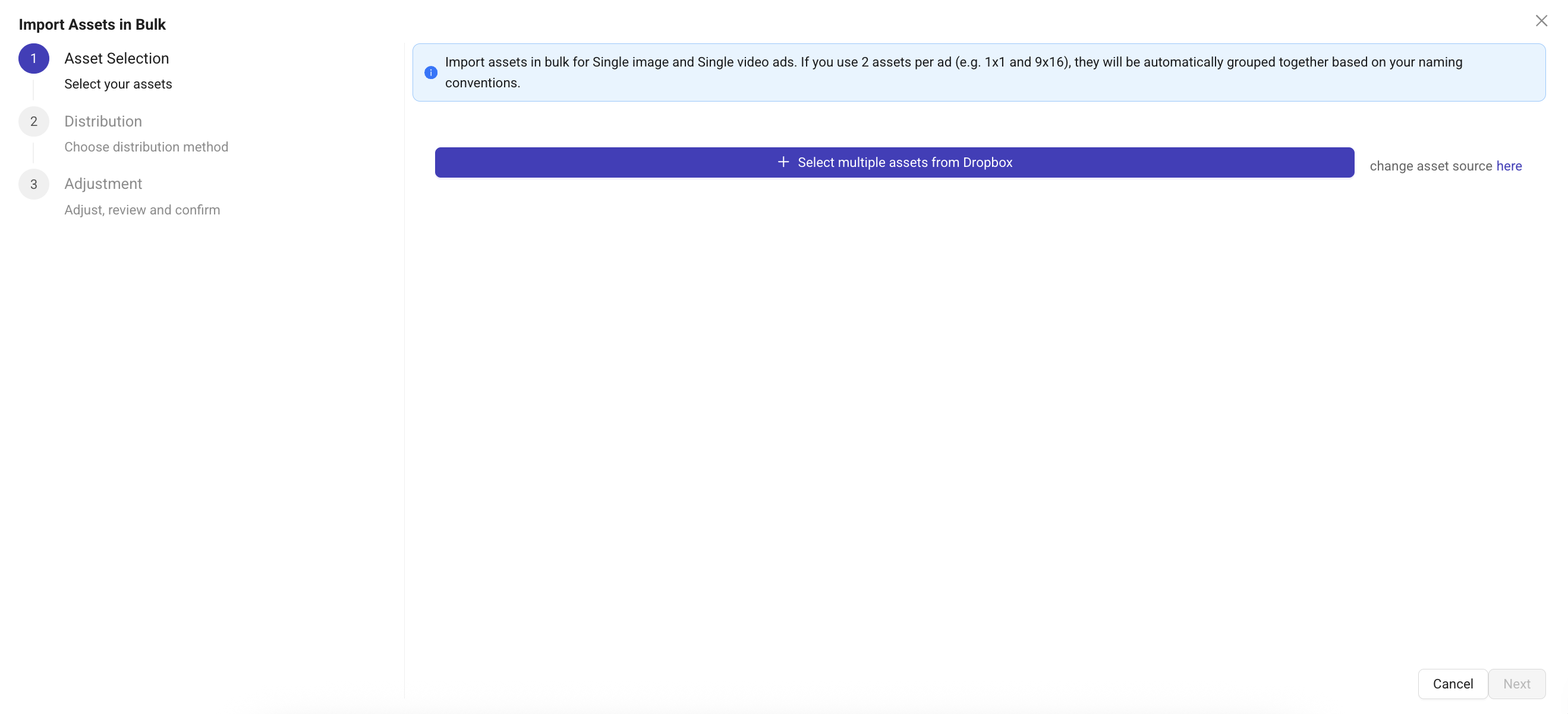
Select your assets
Click “Import assets” at the bottom-left of the sheet.
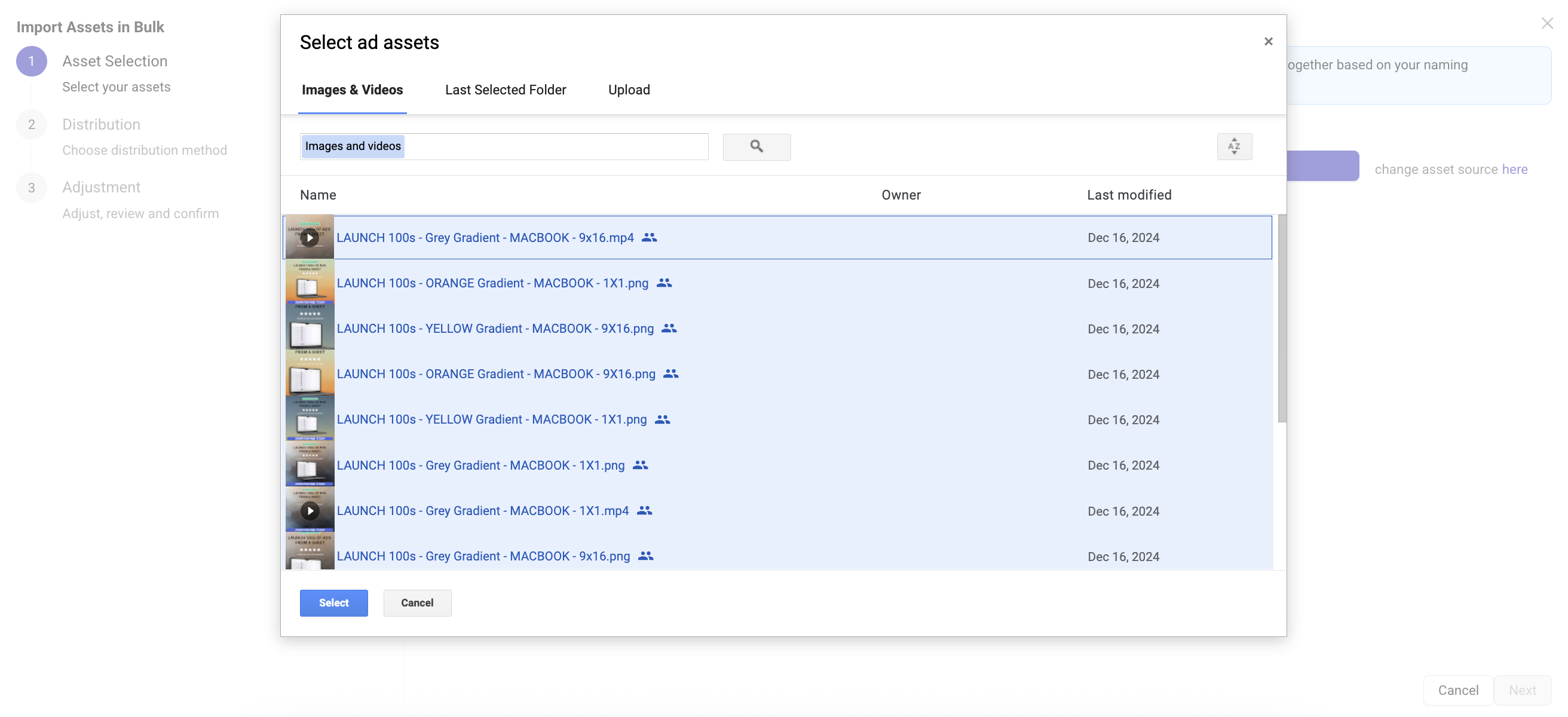
You can select multiple files at once from:Google Drive
Dropbox
Your local device
Tip: use
CMD+A(Mac), orCTRL+A(Windows) to select everything in a folder.Most users work with two versions of each asset (1x1 and 9x16). Kitchn recognises these pairs automatically.
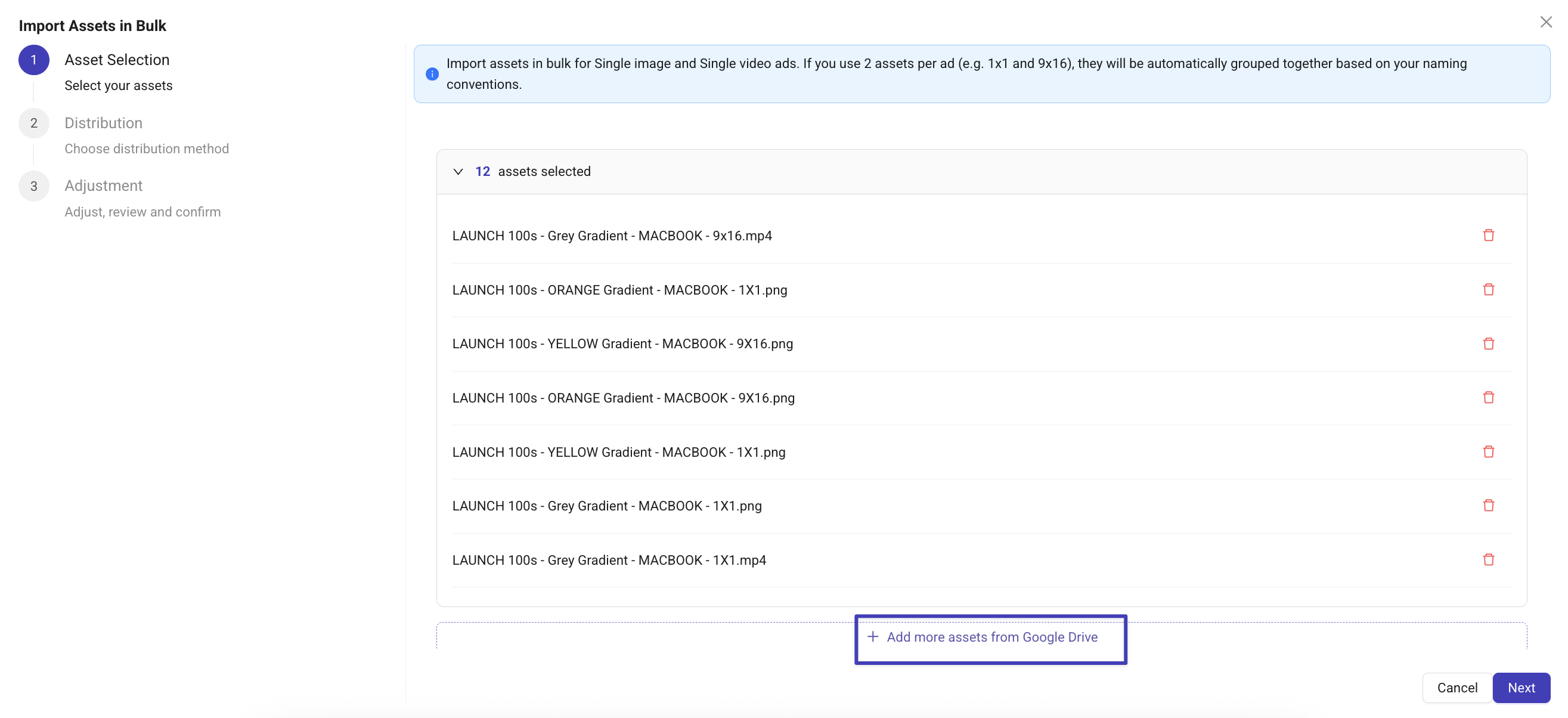
If you like, you can now also add more assets from a different folder using the 'Add more assets' button.Choose how they should map into row
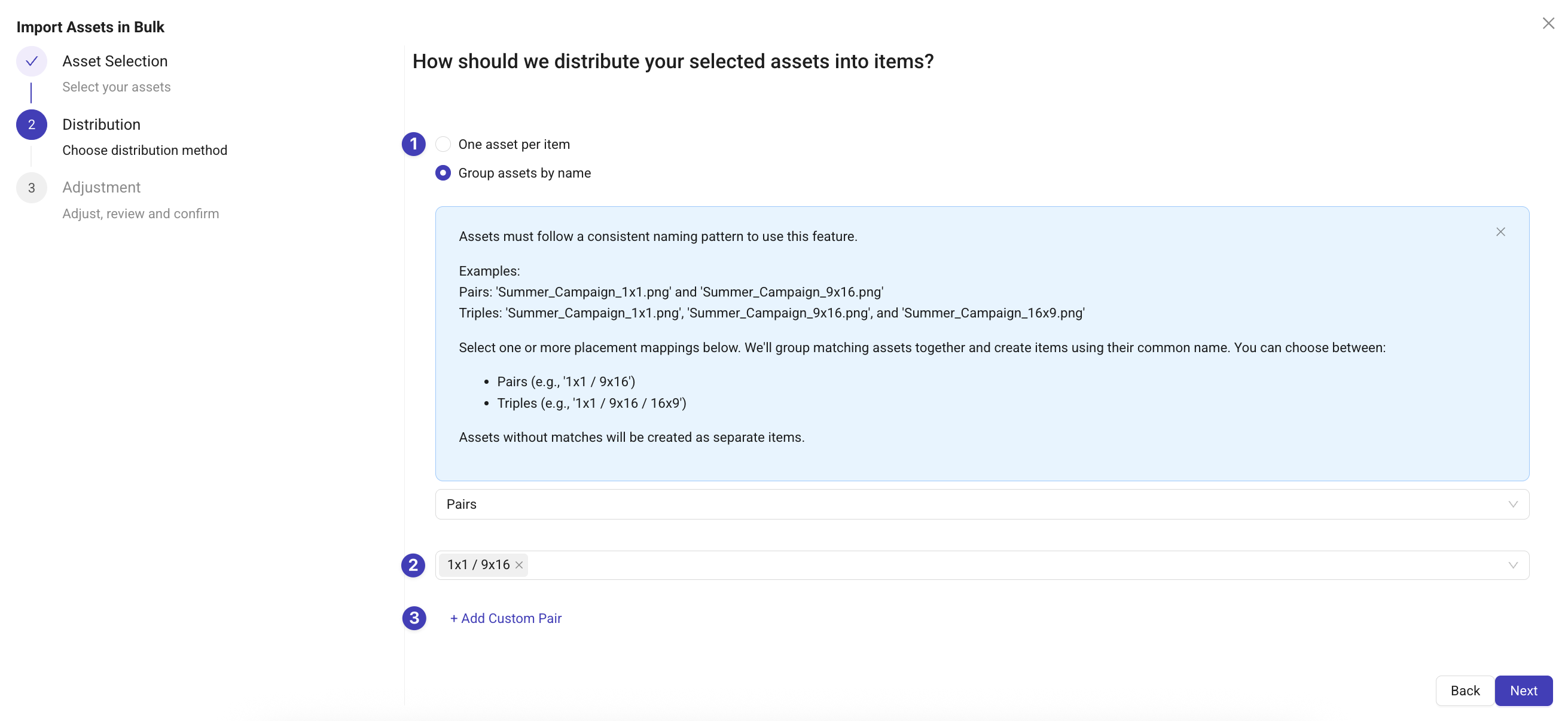
Kitchn matches assets by filename automatically. You can choose any of the options below:
Add one asset per row
Group by 2 or 3 assets (If you're customizing placement by ratio)
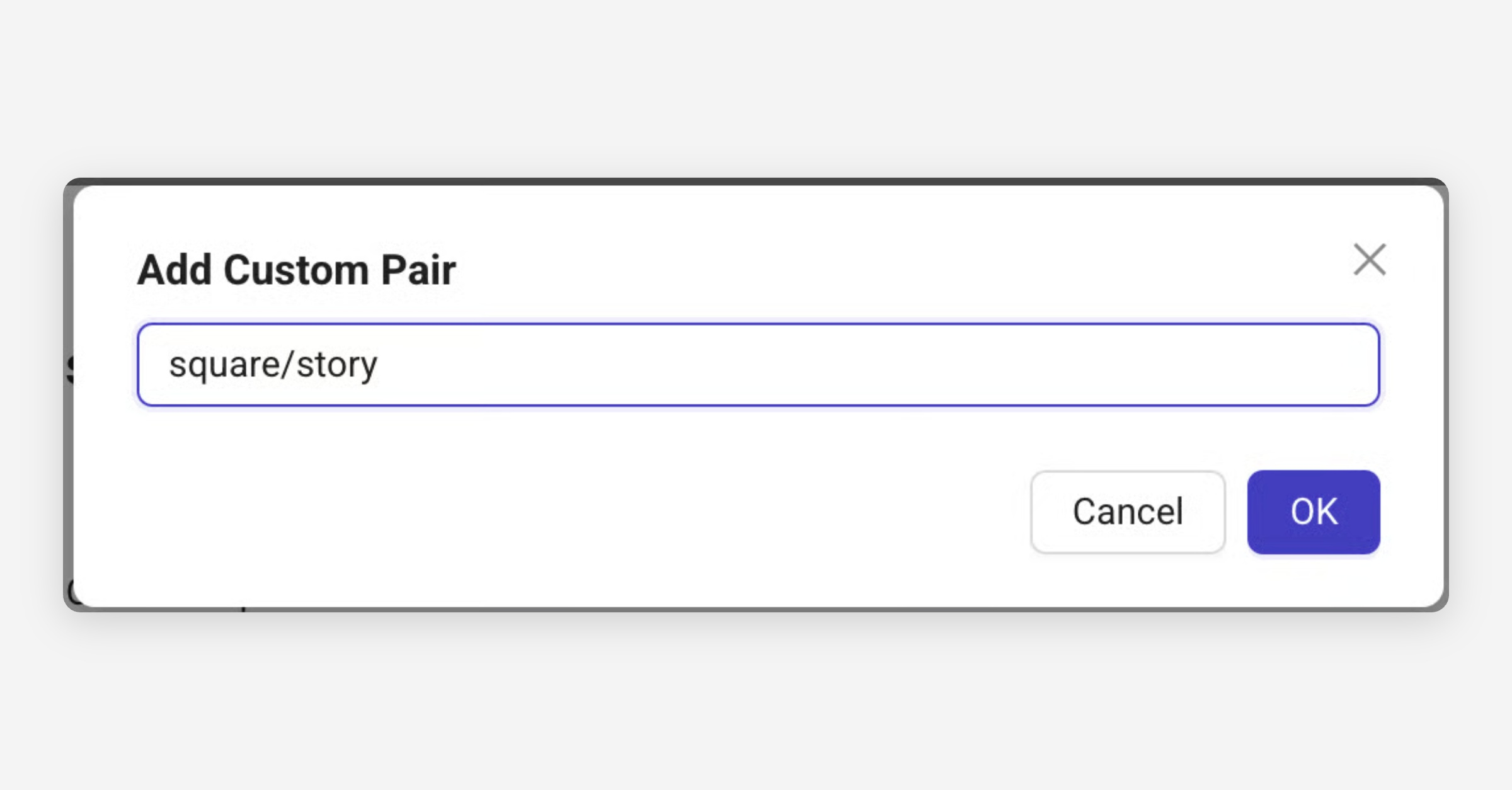
Custom pairing rules (if your naming doesn’t follow standard patterns)
Tip: Working in another language? Use Custom Pair: it supports any naming format, in any language.
Confirm and create your ads
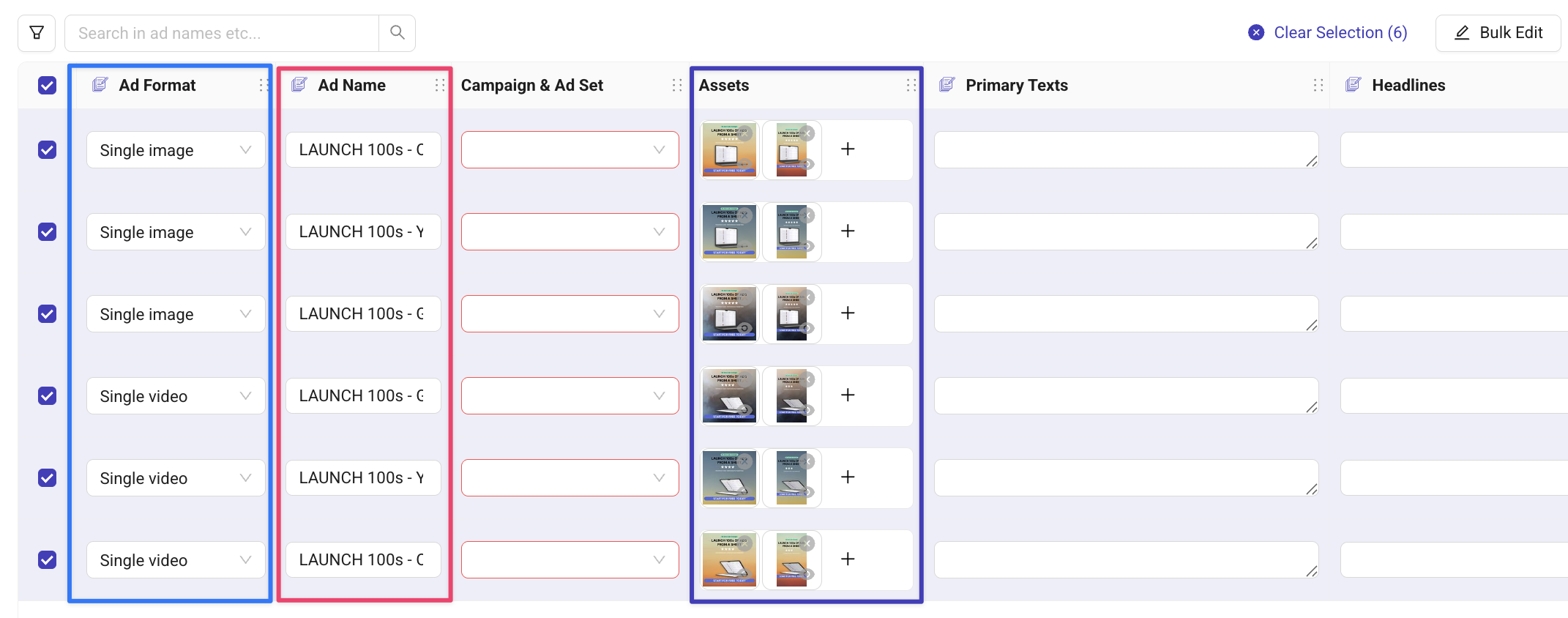
Kitchn creates one row per grouped creative, assigns the correct ad format, and generates a clean ad name from the filename.
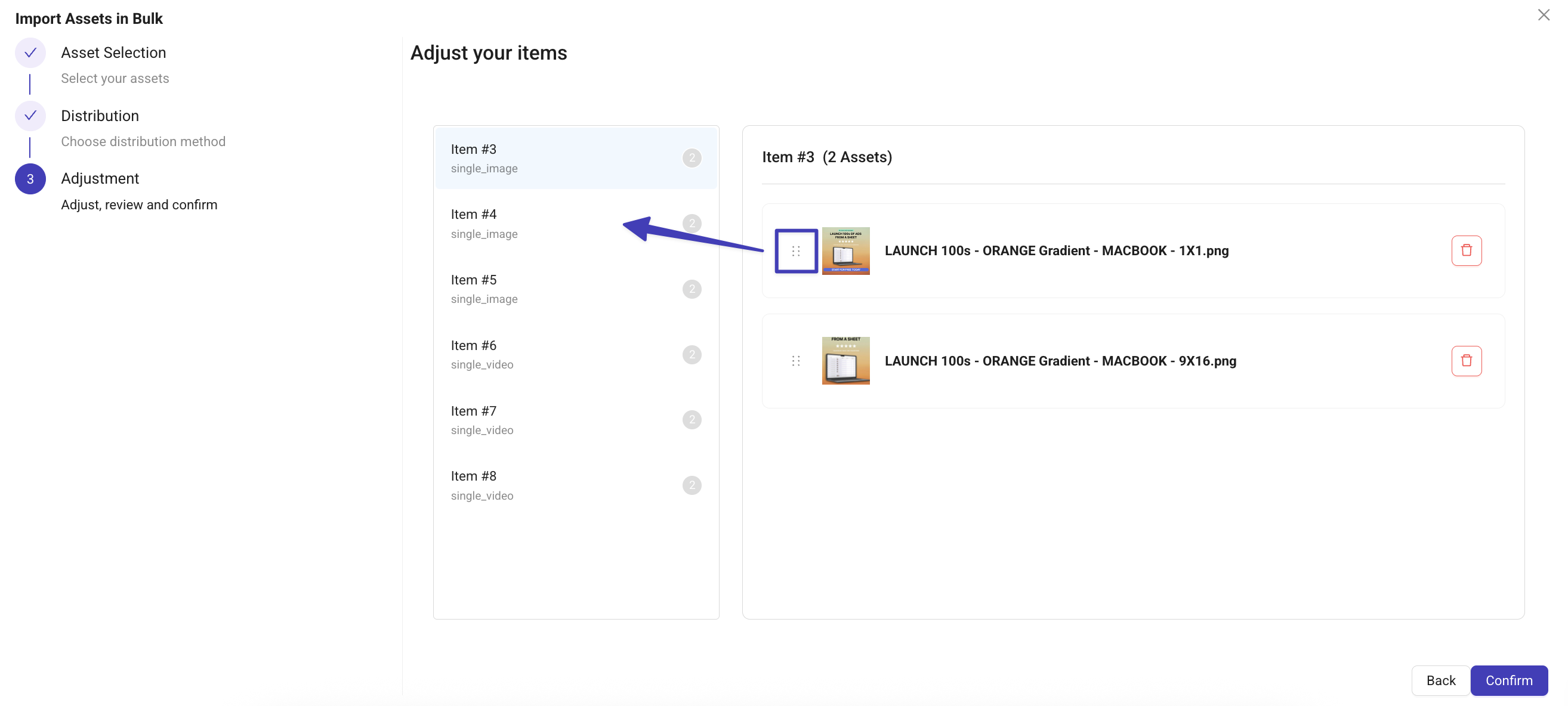
In the example below all 12 assets were correctly grouped into 6 items, with 2 assets each. You can navigate back and forth during the import flow to adjust assets or grouping. You can also adjust assets across different rows. (Use the highlighted drag & drop button above).And, voilà, you're one step closer to publishing your ads.