
Edit Sheet Settings
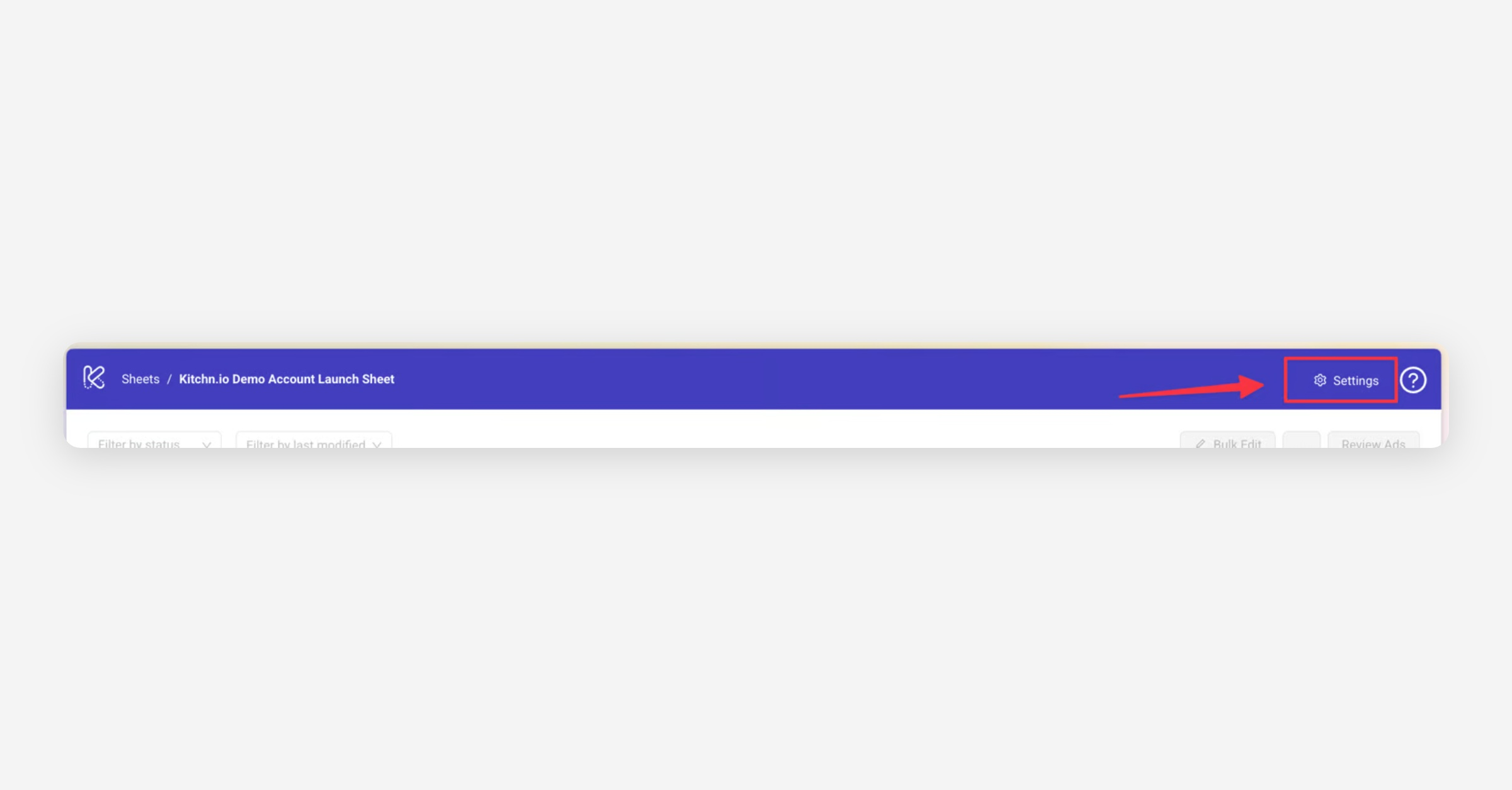
Change your Launch Sheet's settings by clicking on Settings in the top right corner.
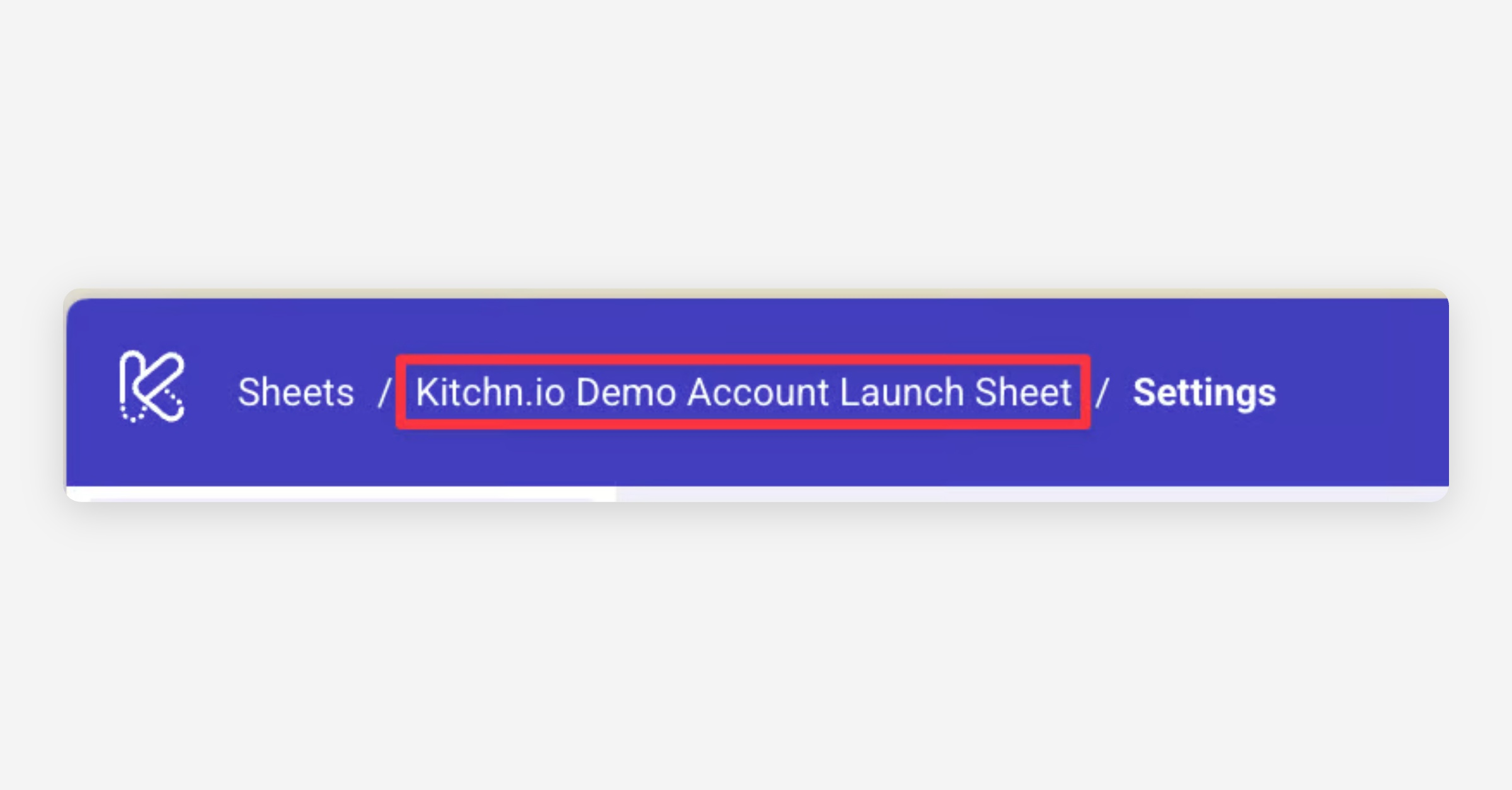
You can navigate back to your Launch Sheet or Sheets Overview page via the Bread Crumbs.
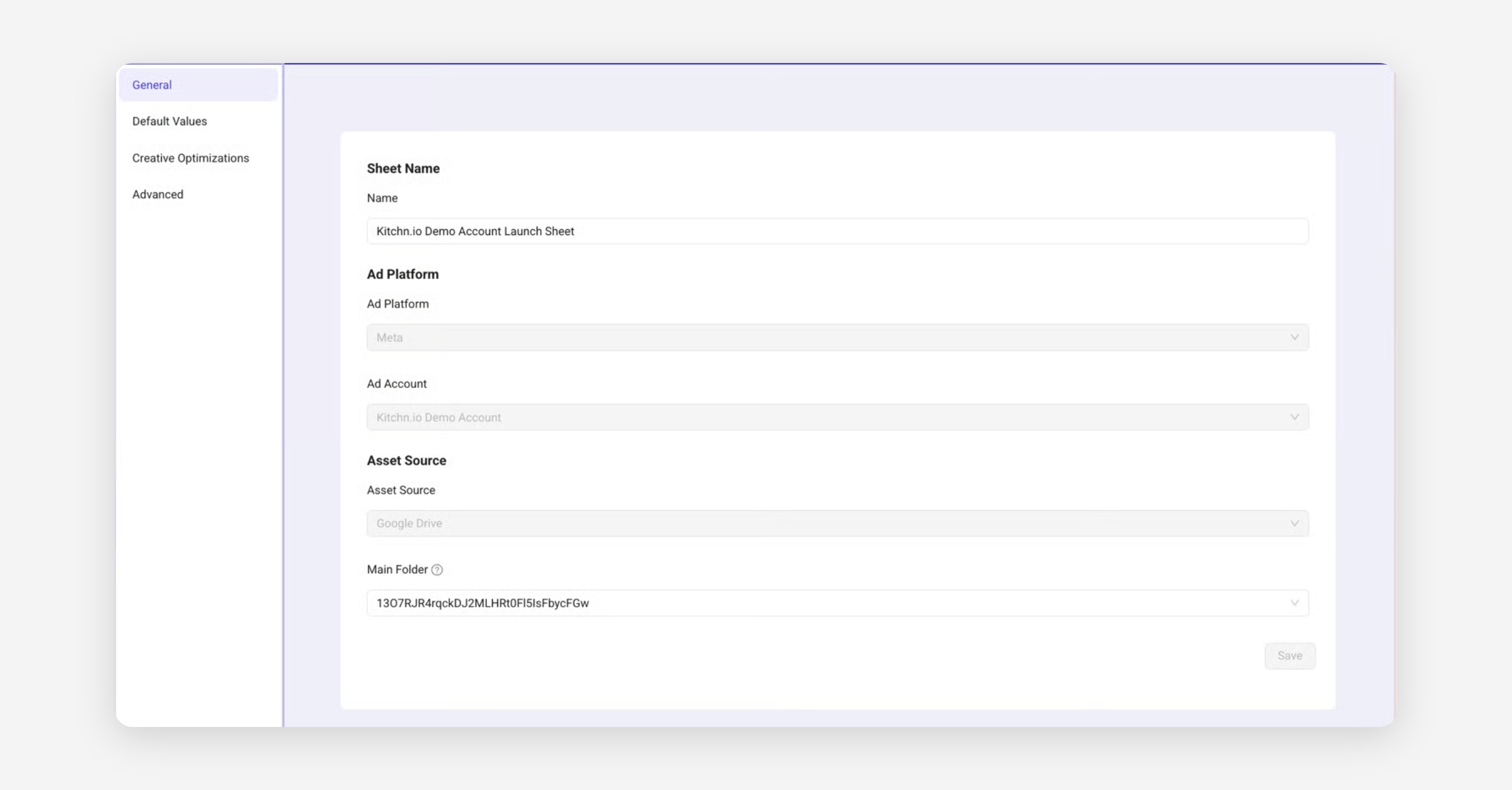
General
Edit your Sheet name and change the main folder.
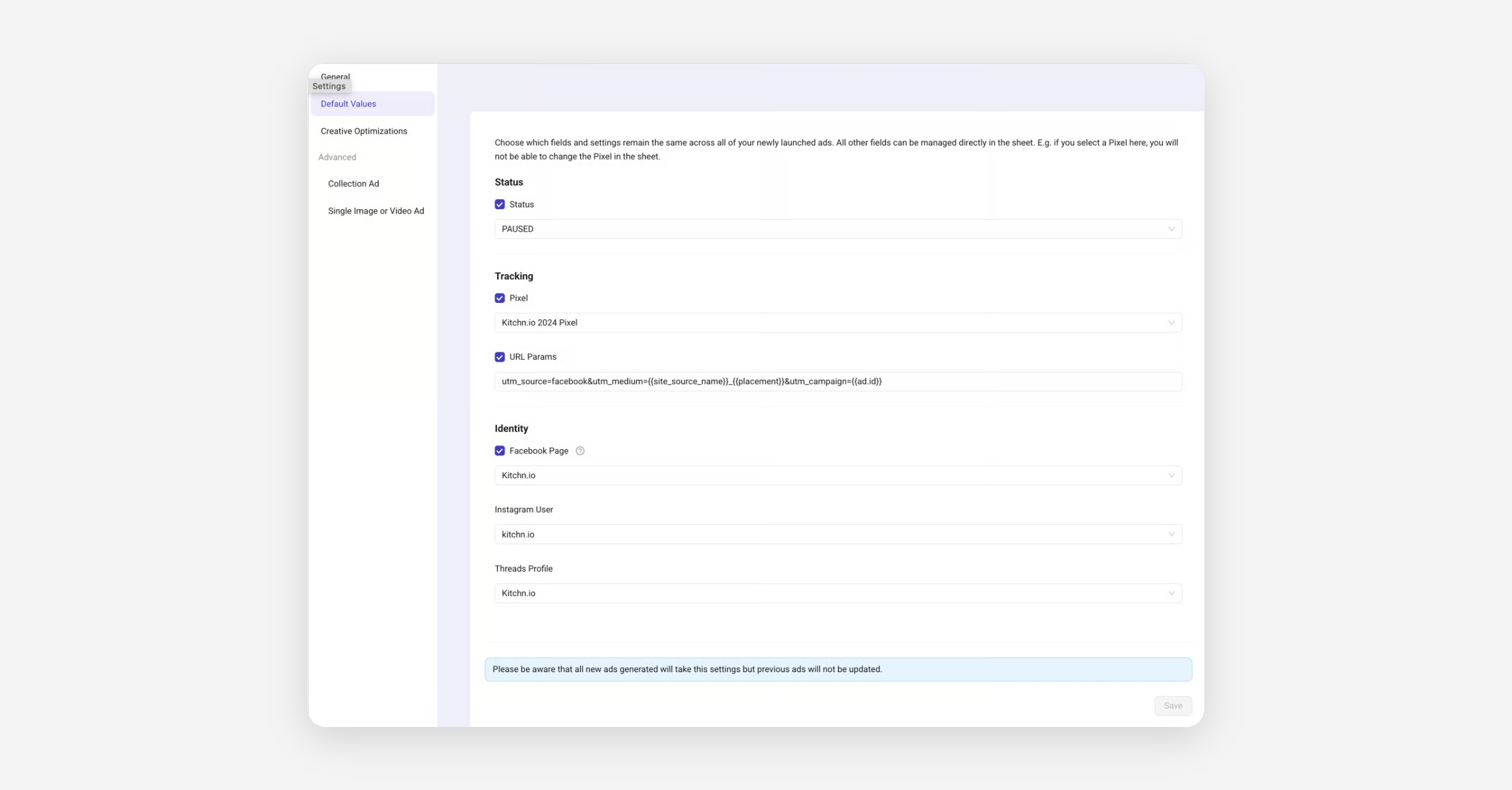
Default Values
You can change any of the default values. Please be aware that all new ads generated will use these settings but previous ads will not be updated.
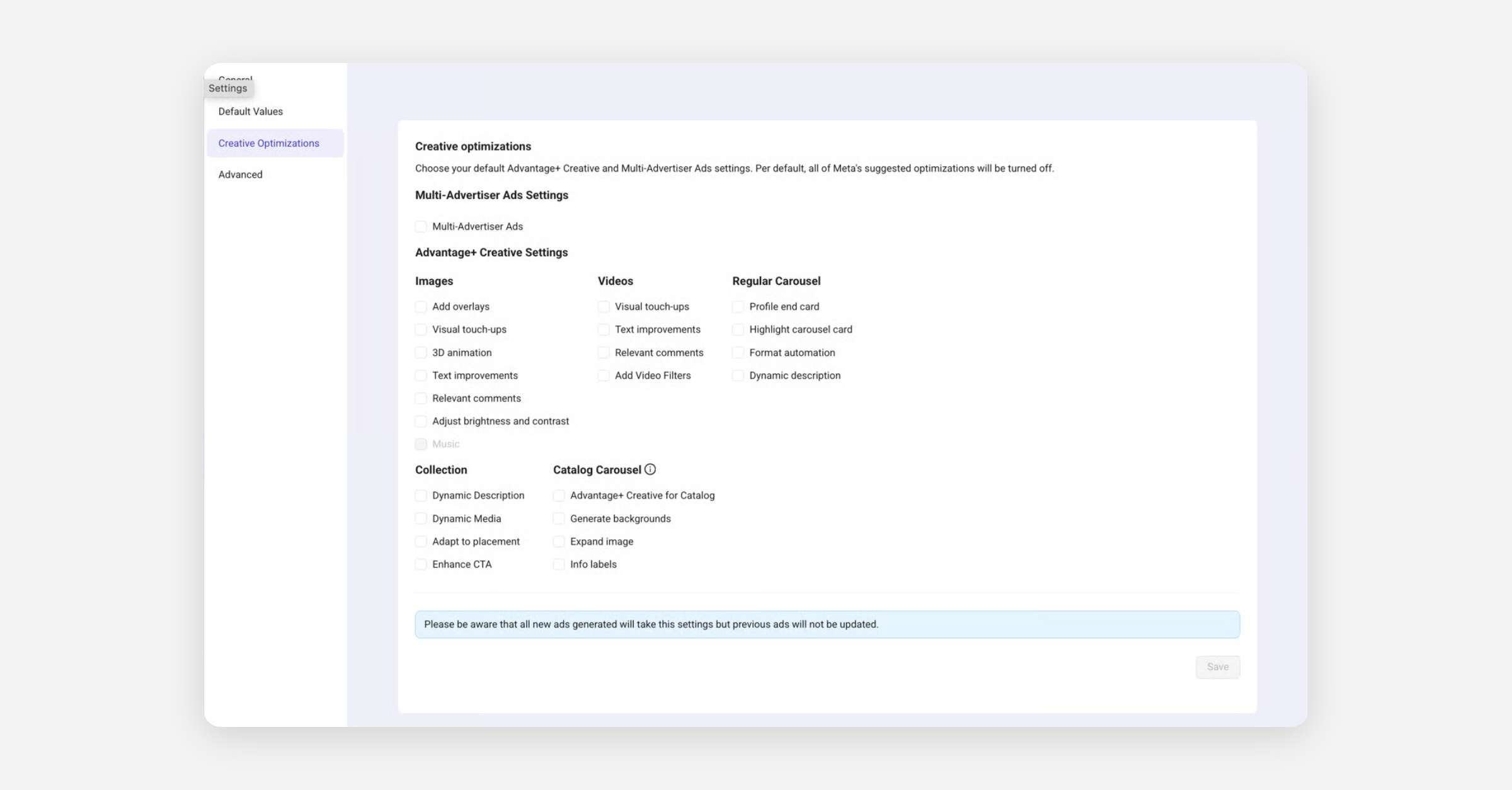
Creative Optimizations
Choose your default Advantage+ Creative and Multi-Advertiser Ads settings. Per default, all of Meta's suggested optimizations will be turned off.
Please be aware that all new ads generated will use these settings but previous ads will not be updated.
Advanced
Collection Ad Settings
Overwrite the default Product headline and description that get displayed below the catalog item image.
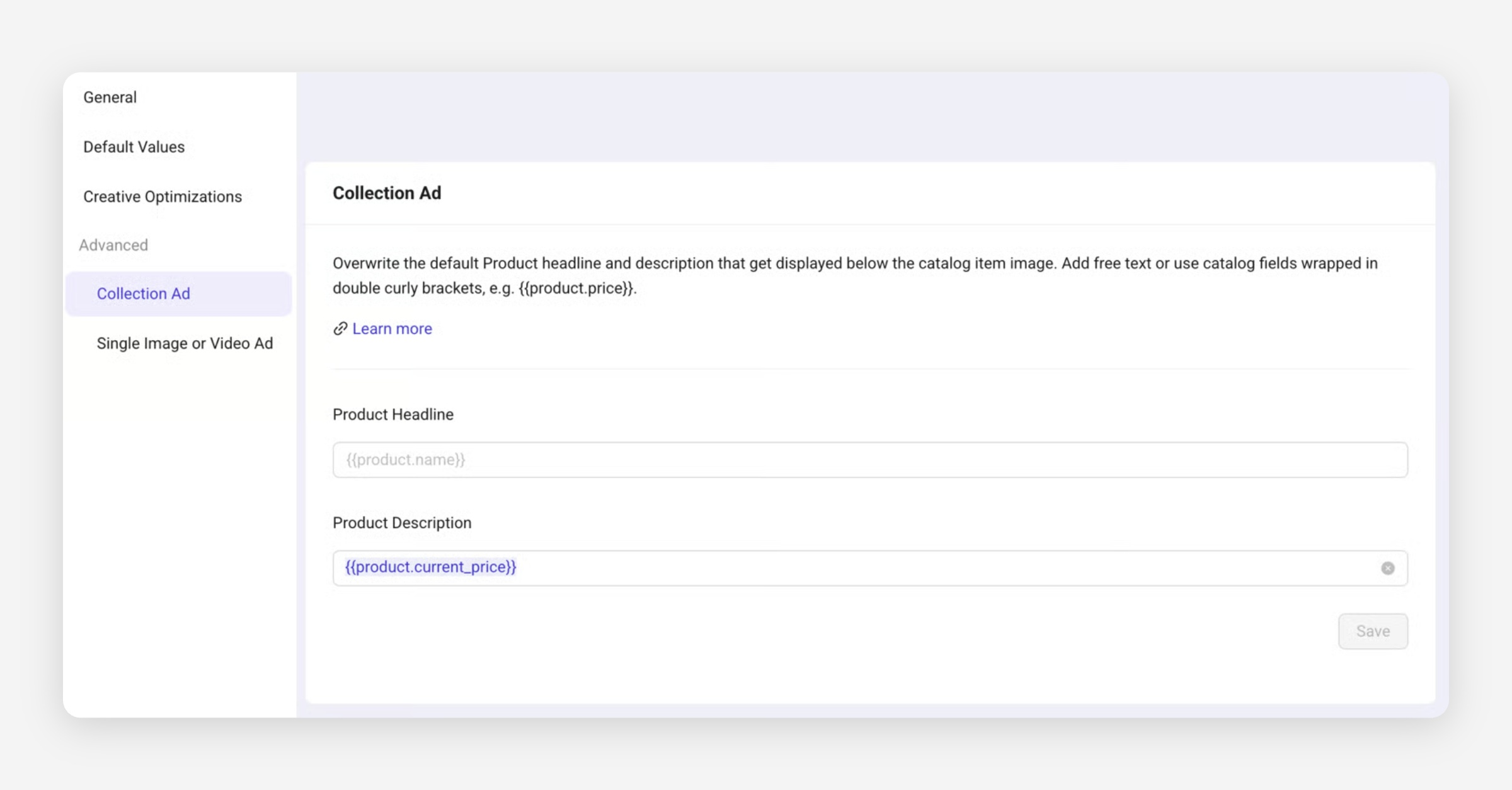
This will replace the advanced options in each of your Collection Ads' Instant Experience giving you the option to use a free text input or one of Meta's Catalog fields.
Please note that it is required to wrap any of the catalog fields into double curly brackets, e.g. {{product.price}}. You can also enter any other text.
Single Image or Video Ad
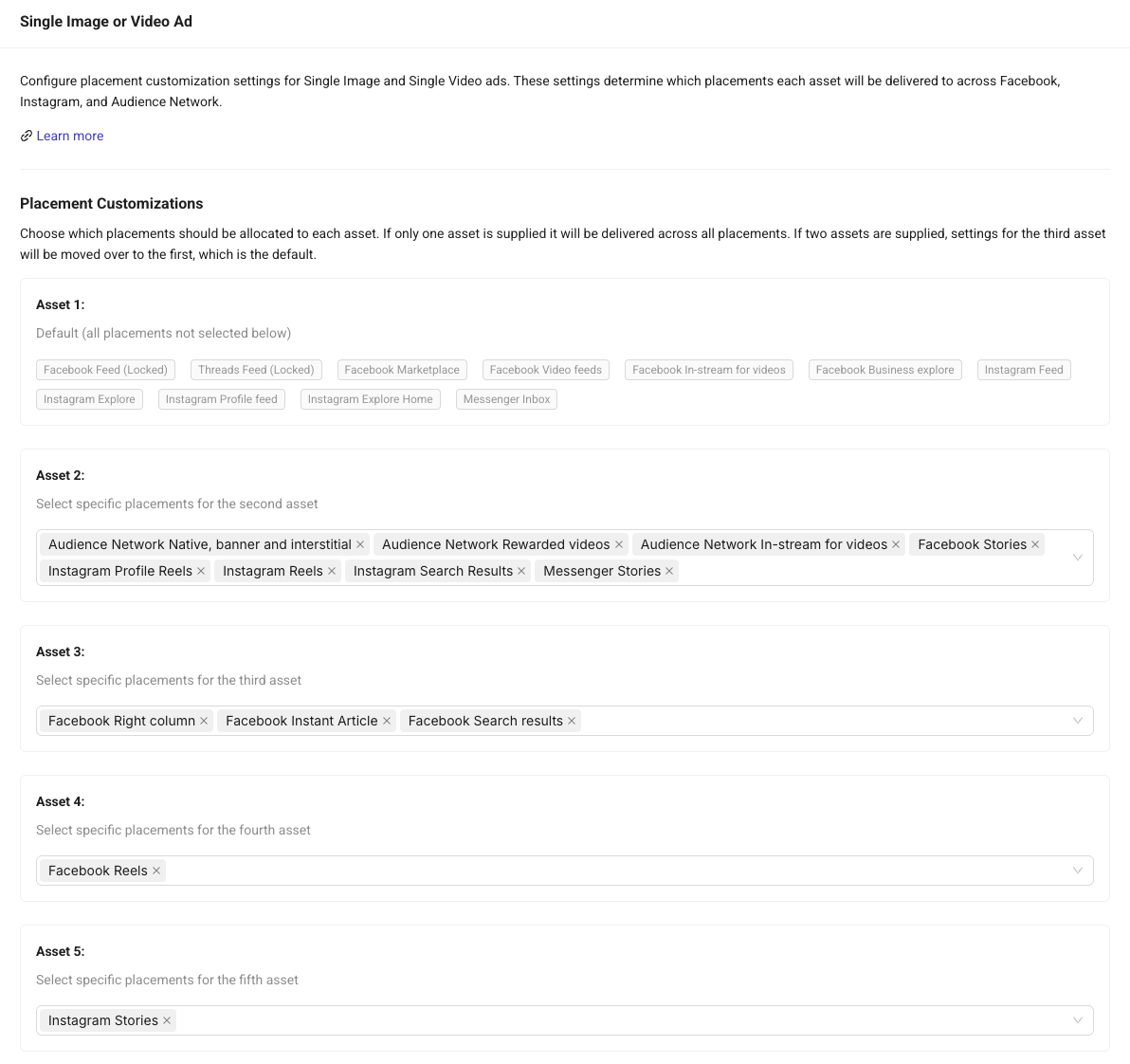
Any sheet can use custom Placement Customisation for Single Image and Single Video ads.
This means if you want to use multiple assets and control exactly which placements use each one, you can simply configure this directly in the Sheet settings as shown below.
For example:
Asset 1: 1:1 → Default Feed placements
Asset 2: 4:5 → Instagram Feed
Asset 3: 9:16 → Instagram Reels
Asset 4: 9:16 → Instagram Stories (Optional)
Asset 5: 16:9 → Horizontal placements (Optional)
Placement Customisation is not limited to aspect ratio only. Multiple assets with the same ratio can also be used and assigned to different placements individually.
This allows to structure creatives based on placement intent instead of reusing the same creative across all placements.
Removing Text from Stories/Reels

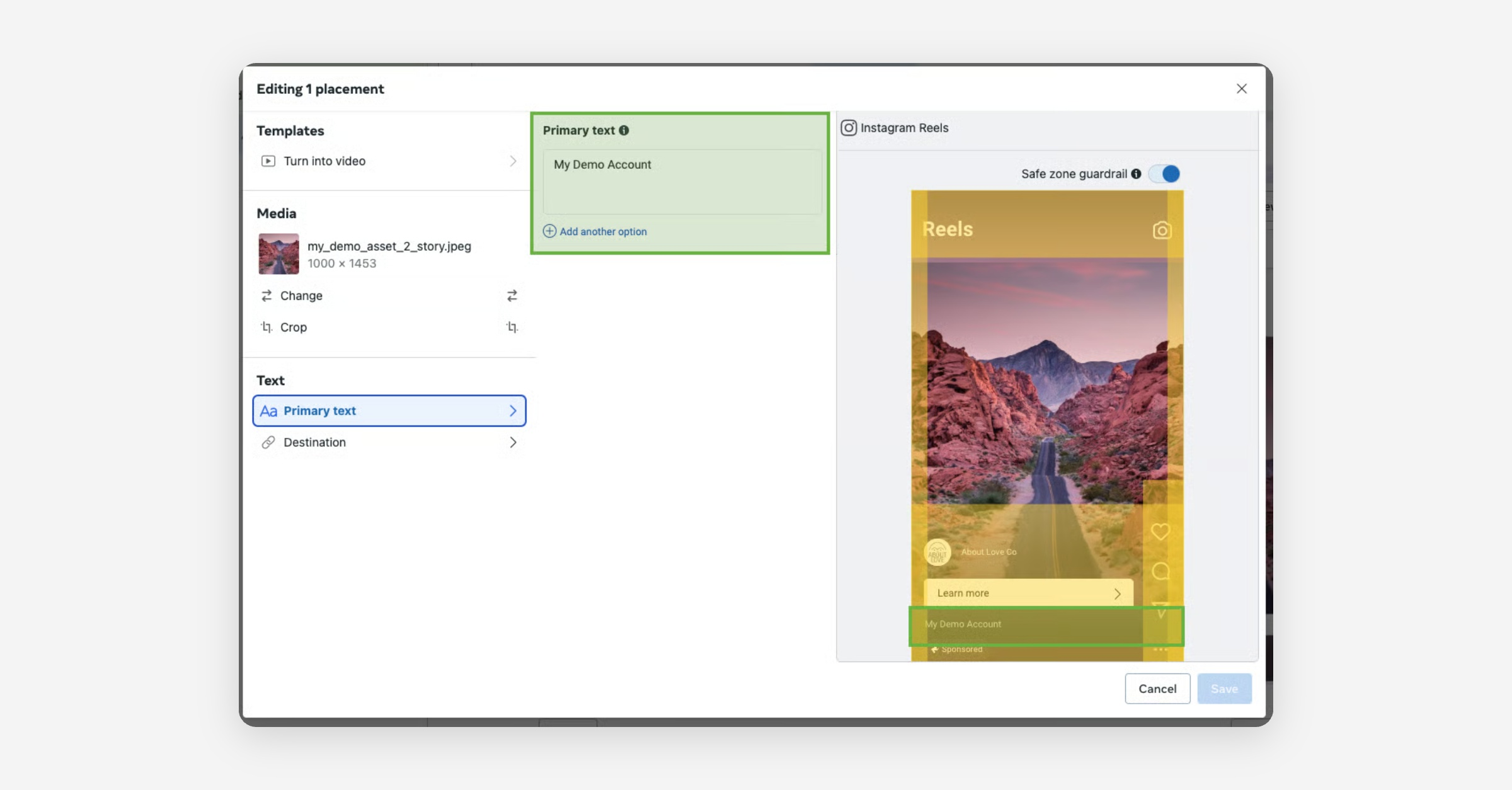
This feature removes all Primary Text for all placements that are defined for the Second Asset. The text removal takes place based on the 2nd asset, irrespective of which placements you have selected for it. Make sure the second asset placements include all Stories and Reels placements for which you want the Primary Text to be removed.