
Copy & Paste from a Spreadsheet
You can paste multiple values directly from Google Sheets or Excel into Kitchn.
Kitchn automatically detects spreadsheet formatting and splits values into separate entries.
How It Works
1️⃣ Copy your data
You can copy:
• A column
• A row
• Multiple selected cells
• Cells containing line breaks
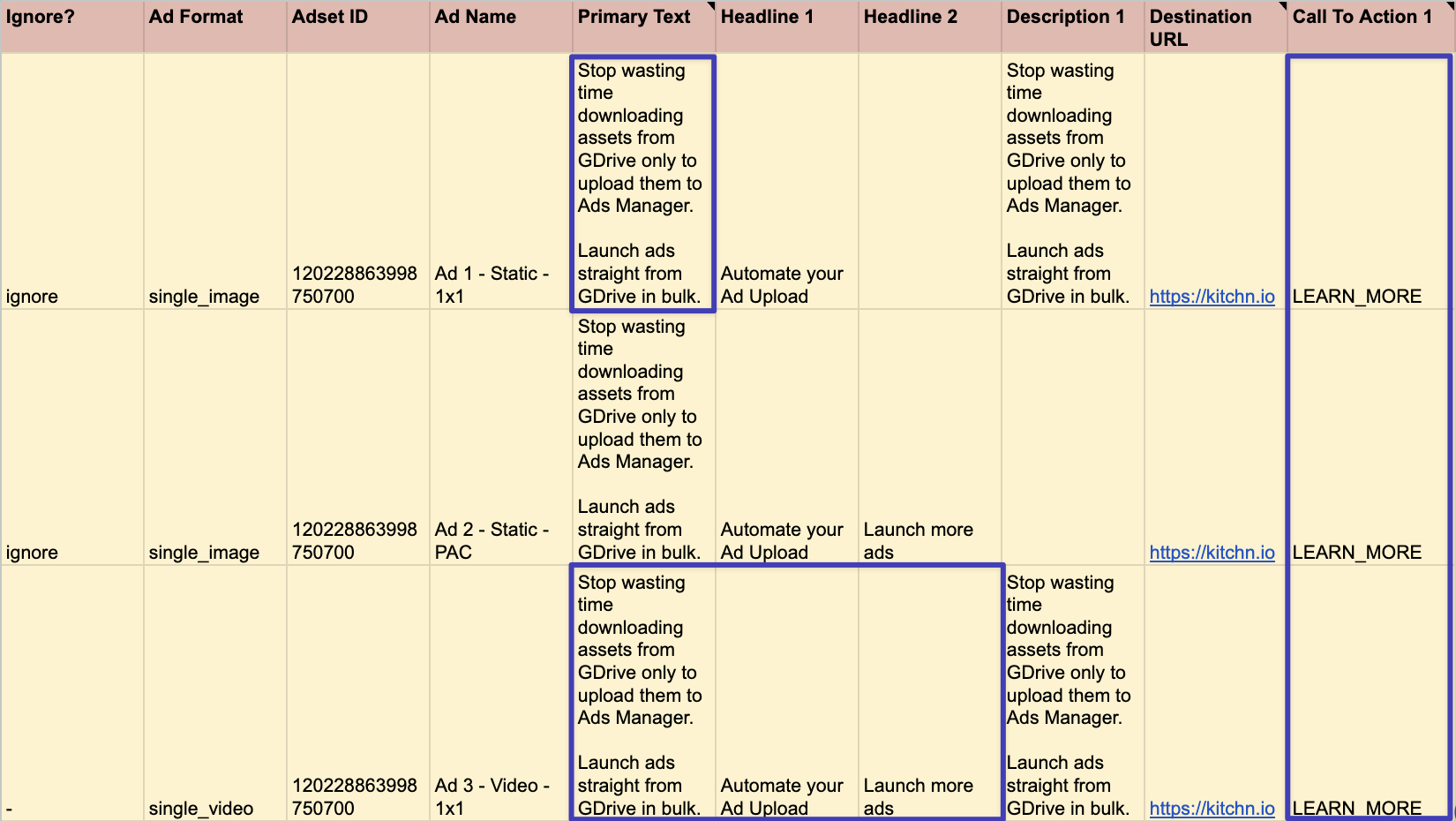
For example:
Primary Text column
Headline column
Description column
URLs
When pasted, each cell becomes a separate field in Kitchn.
Example:
2️⃣ Click inside the text area in Kitchn
Click inside the Primary Text, Headline or Description section.
Do not place your cursor inside a single variation field.
The cursor should not be blinking inside one specific text box.
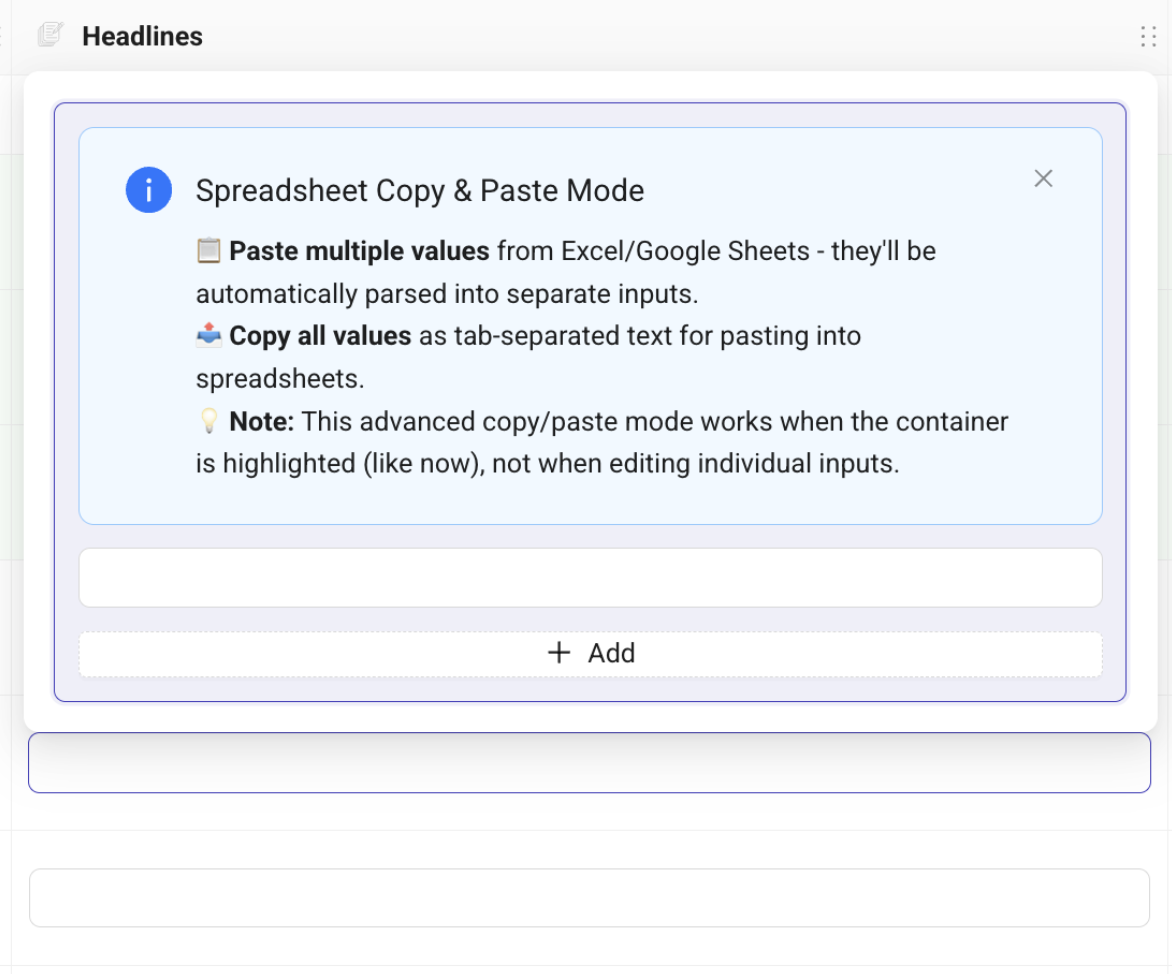
When you’re in the correct state, you’ll see:
Spreadsheet Copy & Paste Mode
Paste: Paste rows from Excel/Google Sheets – each cell becomes a field.
Copy: Copy all fields at once in a format you can paste directly into Excel/Google Sheets.
3️⃣ Paste
Use:
Cmd + V
or
Ctrl + V
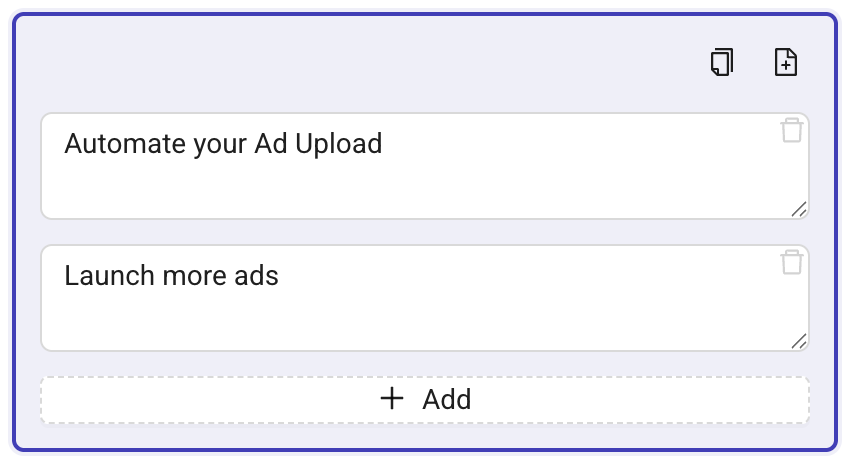
Kitchn will automatically:
• Split tab-separated cells
• Split line-separated values
• Remove spreadsheet quotation marks
• Keep line breaks inside texts
• Ignore empty cells
💡 Examples
Pasting a column
If you copy:
Text A
Text B
Text C
You’ll get:
• Text A
• Text B
• Text C
Each as its own variation.
Pasting a row
If you copy:
Primary Text | Headline | Description
Each value will be placed in its matching field.
Multiline text inside a cell
If one spreadsheet cell contains:
Line 1
Line 2
Kitchn keeps the line break inside the text.
No quotation marks are added.
Keyboard Shortcuts
Shift + Enter → Add a new input manually
Text areas automatically resize based on content.