What's New in Kitchn This Week
🤝 Partnership Ads, Now Built from scratch
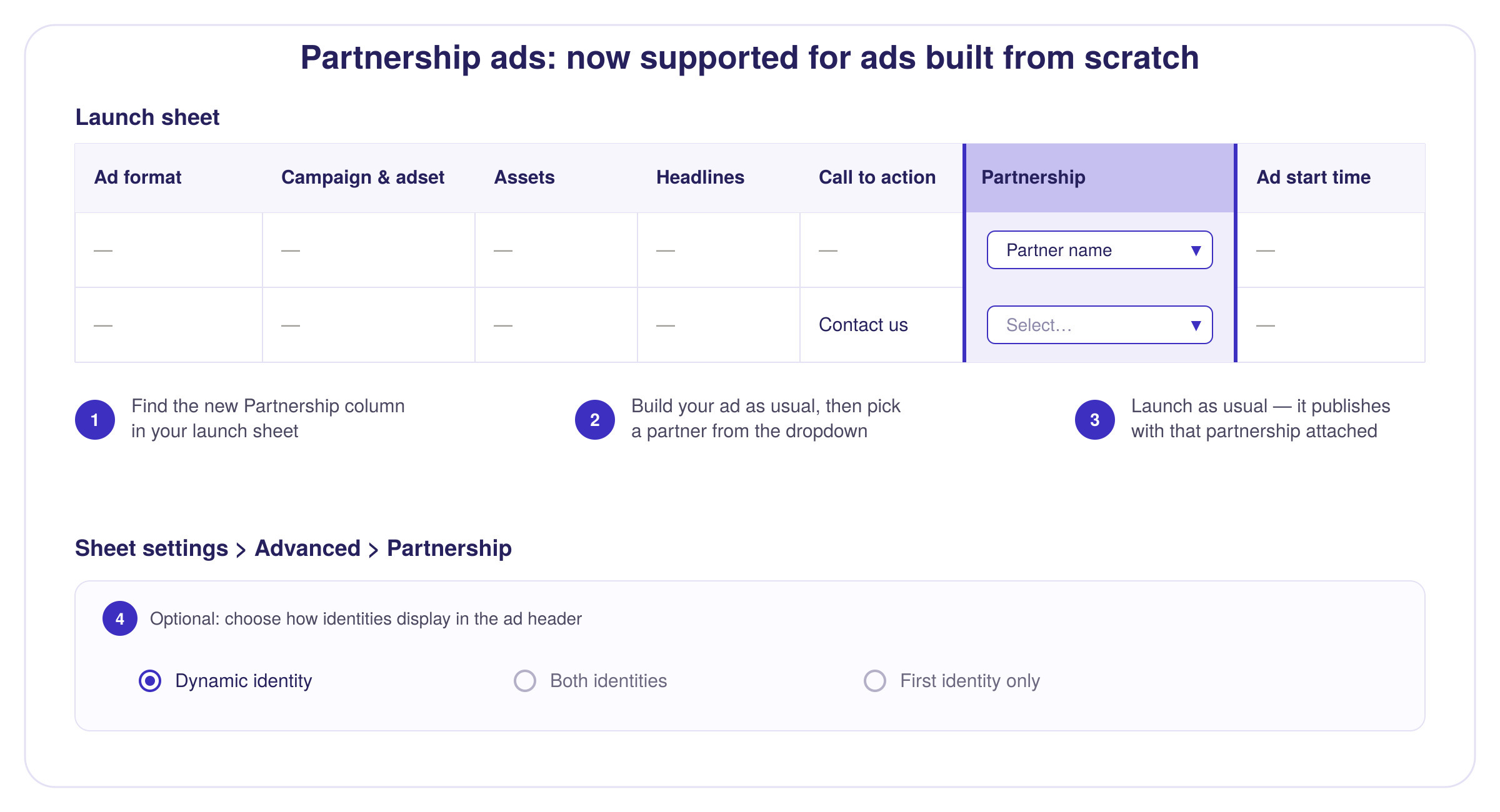
Partnership Ads used to only work with Ad-Codes. Not anymore — you can now build ads from scratch and attach a partnership to them.
How it works:
Look for the new "Partnership" column in your launch sheet
Build your ad as usual (single image/video, carousel, or any other supported format)
In the Partnership column, select the relevant partnership from the dropdown
Launch as usual — it'll publish with the partnership attached ✅
💡 Want to control how the partner identity shows up in the ad header? Go to Sheet Settings > Advanced > Partnership.
🤖 Declare AI-Generated Creative
You can now flag AI-generated content directly from your Meta Launch Sheets.
Just look for the new "AI-Generated Content" column and select Yes or No from the dropdown.

🎠 Custom Asset Placements for Carousels: Cleaner, Smarter Grouping
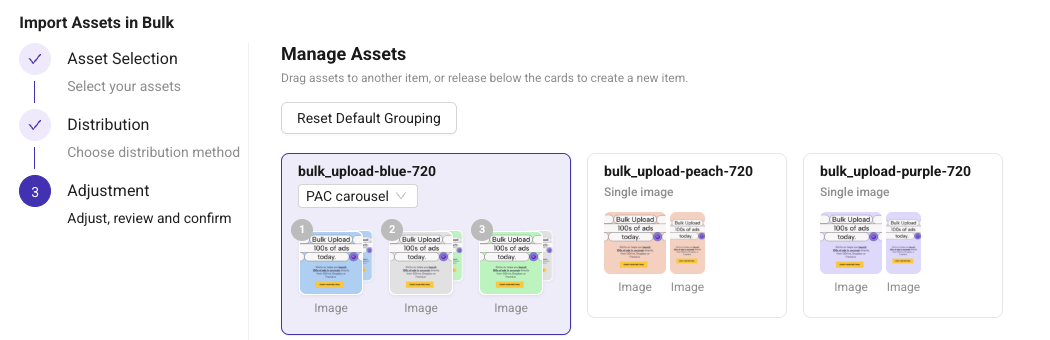
We've upgraded how Product Catalog + Carousel (PAC) ads display. Cards are now automatically grouped by card and asset size when you select a PAC carousel — making it easier to see what you're working with at a glance.
📌 New to PAC Carousels? This feature lets you custom the placements of the assets according to the aspect ratio. For example, 1x1 assets to the feed - 9x16 assets to stories and reels.
🎨 Format Display Options for Catalog Ads
If you're running ads with Product Catalog + Creative Optimization, you now have more control over how those ads render.
You can choose which display formats Meta is allowed to use — for example, disabling:
Carousel
Collection
This means your ad can appear with the main creative up top and the catalog underneath, instead of being forced into a carousel layout. Handy if you want more control over how your ad looks (and performs) across placements.
How to set it up:
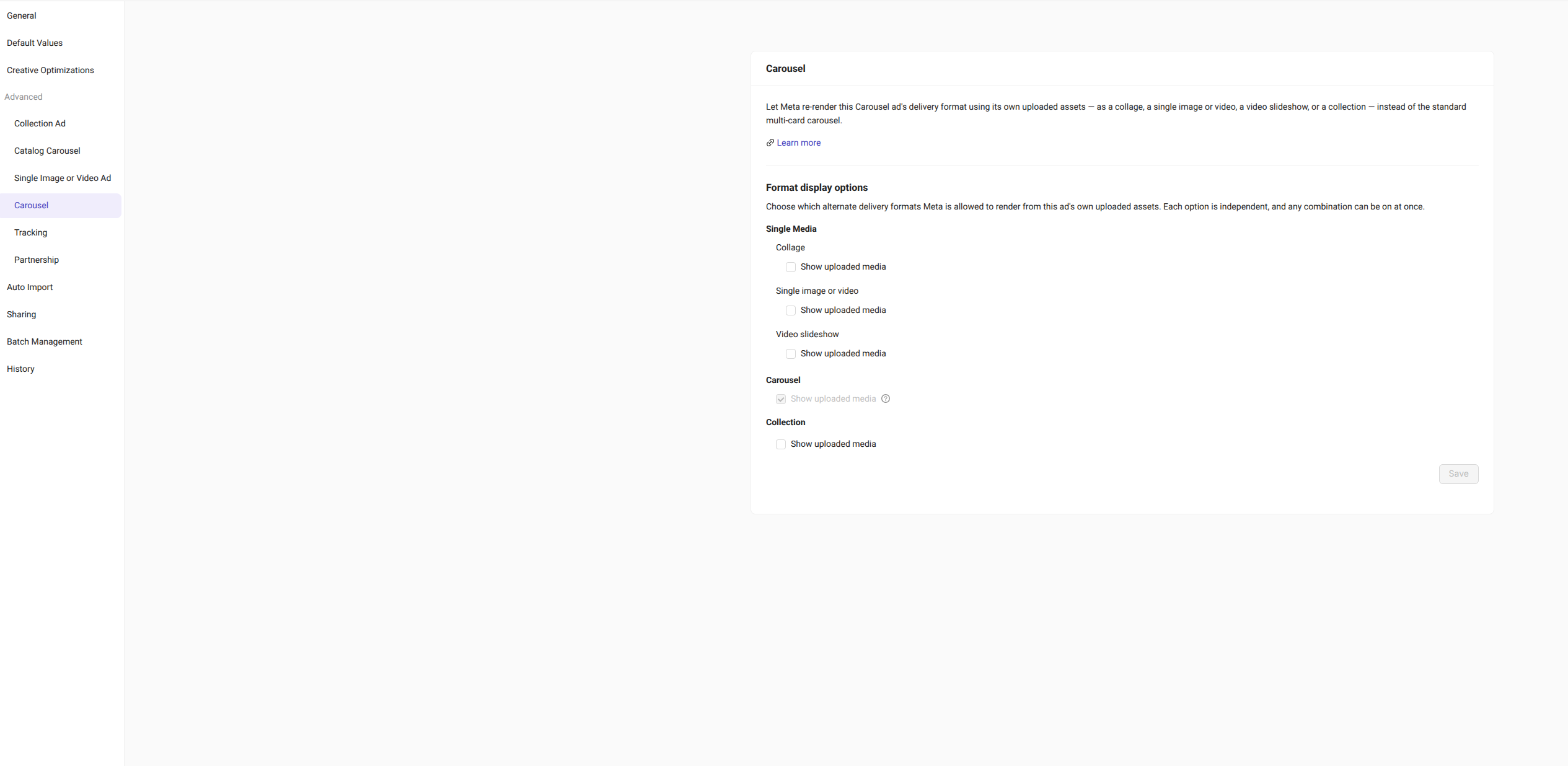
Open Sheet Settings
Go to Advanced Settings
Under each Ad Format, find the new Format Display Options section
Configure your preference — it'll apply to every ad launched from that sheet